sábado, 1 de maio de 2010

Bypass - Skip the Time Limit for download all Sites File Hosting

Bypass - Skip the Time Limit for download all Sites

Request a new IP address from your ISP server

Here’s how to do it in windows:
1. Click Start
2. Click run
3. In the run box type cmd.exe and click OK
4. When the command prompt opens type the following.

ENTER after each new line.
ipconfig /flushdns
ipconfig /release
ipconfig /renew
exit

Note: This might only work for DSL/Modem Internet Connection, not for Cable Internet users

Disclaimer: Some call this as hacking trick or Hacking Rapidshare, but anything related to piracy. All information mentioned above is not created by psmoviesdownload.blogspot.com

How to Make a Paypal Account


Here’s a step by step process on How to Make a Paypal Account. This guide will walk you through the process of signing up for paypal up to verifying your email address.


How to Make a Paypal Account: Step 1


Sign up for an account by visiting the PayPal website and clicking the “Sign Up Today!” link located at the bottom of the page.

how-to-make-a-paypal-1


How to Make a Paypal Account: Step 2


Select your country or region and pick the account type of your choice.


how-to-make-a-paypal-2


Personal Paypal Account - For individuals who shop online.

Premier Paypal Account - For individuals who buy & sell online.

Paypal Business Account - For merchants who use a company name or group name.


All these account can be upgraded anytime after sign up. So it doesn’t really matter what you pick at the start. If you’re an individual just using paypal to buy online, pick the Personal account. If you are looking to buy and sell online or wants to earn online, pick the Premier account. The business account would be tough to register as paypal would need EIN to confirm that you are a business.


How to Make a Paypal Account: Step 3


Fill up the sign up form.


how-to-make-a-paypal-3


We are almost there! :)


How to Make a Paypal Account: Step 4


Enroll a debit card or credit card.


how-to-make-a-paypal-4Paypal will ask you to enroll a credit card or debit card so you can deposit money into your paypal account. But you may skip this step and log in to your account by click the “Go to My Account” link.


How to Make a Paypal Account: Step 5


Logging in to your Account Overview. To activate your Paypal account you have to


  1. Click on the verification link on your email, sent by Paypal.

  2. Enroll a credit card or debit card.


how-to-make-a-paypal-5Congratulations! You just created your very own Paypal Account! You can now receive money by using your email that you used in the sign up process.


Sign Up for Paypal Now


How to verify my PayPal account?


Verified PayPal members living outside of the U.S. complete the Expanded Use process by:


1. Confirming their email address

2. Adding a credit card

3. Entering the Expanded Use Number


How to add a credit card to my PayPal account?


1. Click the My Account tab.

2. Click the Profile subtab.

3. Click the Credit Cards link in the Financial Information column.

4. Click Add.

5. Fill out the Add Credit Card form.

6. Click Add Credit Card.

7. You have successfully added your credit card to your PayPal account.


How to enroll in the Expanded Use Program?


1. Upon adding your credit or debit card, complete the Expanded Use enrollment wherein PayPal charges your card a small fee ($1.95).

2. The fee appears on your bank account statement accompanied by a unique, randomly generated four-digit Expanded Use (EXPUSE) number.

3. Locate your four-digit Expanded Use number, either on your next paper or online credit card statement. The Expanded Use number is located right before the word PayPal in the description of the Expanded Use fee charged to that credit card.

4. Log in to your PayPal account and click the Complete Expanded Use Enrollment link on the Account Overview page to complete your enrollment.


VirtualDub

If you have a movie DUAL AUDIO and want to remove one of the audios to decrease the size of the movie and save space in HD, just follow the steps below:

Note: The program is used VirtualDubMod if you do not have the pc, just click download. Just unzip and start using poi he does not need installation.

1) Open VirtualDubMod.exe by two clicks, go to File => Open video file and choose Select the movie to be edited DUAL AUDIO

1-criandomsn-VirtualDub

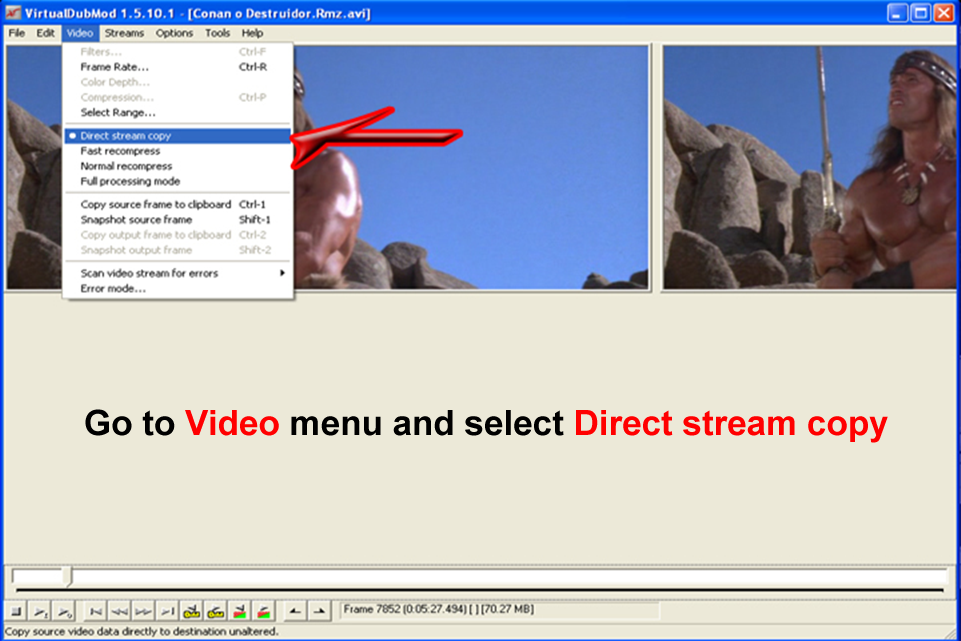
2) Go to VIDEO and select DIRECT STREAM COPY. This is important! If you forget to do this, will change the video

2-criandomsn-VirtualDub


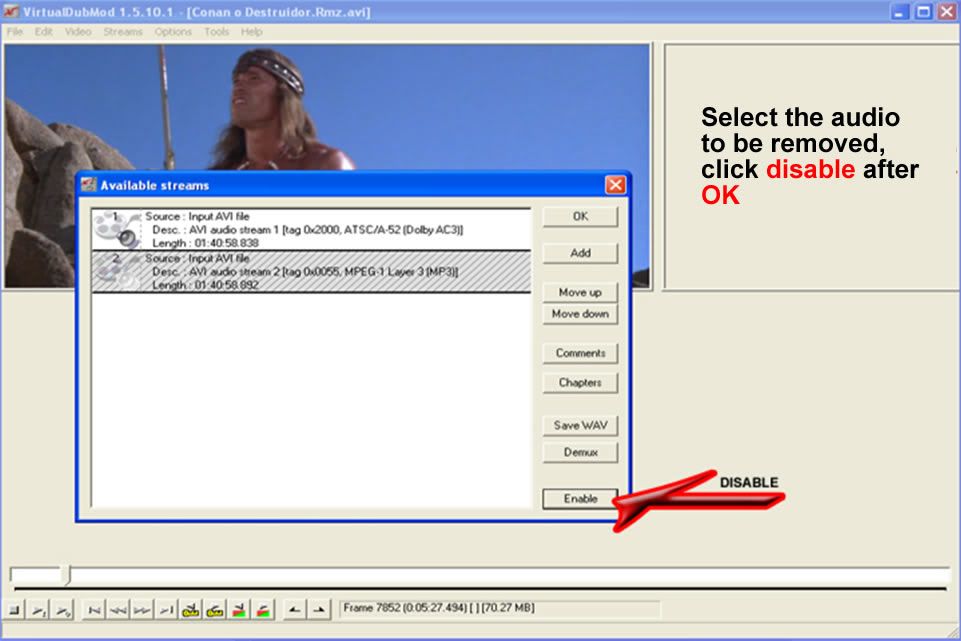
3) Go STREAMS, and then click STREAMLIST.

4.5-criandomsn-VirtualDub

4) Choose the audio to be removed. If the stream is the unwanted STREAM 1 (=> audio), click on "her" and then click OK and DISABLE. In the case of the image, was the unwanted second STREAM, STREAM will be scratched the

unwanted

3-criandomsn-VirtualDub


5) Now, go to FILE, choose Direct Stream Copy, create a name for the file and click on save

5-criandomsn-VirtualDub


Video:Remove the audio of movie dual-audio

Winrar

In this tutorial, I show how to join separate parts of a file by winrar.
For those who do not know what files are these, are the files that have the name+part1, name+part2 until they finalize the file with a single form.

Ex


If your computer the zip extension is not yet recognized, and Windows can not open files in that format, please download winrar by clicking download.
The first thing to do is put all the pieces of the file in a single folder. Then there are two ways to join.
The first way is to select all parts of the file and click with the right, the options will appear as shown below.


Click the option that contains "Extract to ‘Name_yor_file' \" wait and winrar finished unpacking.
The second way is to select the first part of the file (the file named "seu_arquivopart1.rar") and click with the right selecting the same option shown in the picture.


After unpacking just open the file normally.

Video: How To Extract Part 1,Part 2 Rar Files Etc With Winrar


XP codec pack

XP codec pack: Download
"Say goodbye to compatibility issues using this package complete with more codecs required!

When you open certain video or music on your computer, it is very common for the player used proved unable to play the file. As much as the user to verify the integrity of the file, the problem persists, causing a lot of headaches. In such cases, usually the problem is the lack of installation of any codec.

WHAT ARE CODECS?

Codecs are nothing more than a few files responsible for making the encoding and decoding of certain media files. They enable file compression, making music videos and do not occupy much space on your hard disk, while maintaining visual and sound quality.

To put it briefly, codecs are codes specific to each format used to shrink a file, allowing space saving. For the computer can read the information contained in these files, you need to possess the corresponding codecs installed. It is like an interpreter, able to understand and communicate in many different languages. More details can be found in the article "What are codecs?".

Codec pack

Currently there are several different formats, codecs, each of them being more successful than another with respect to compress sound or visual information. Because of this tremendous diversity, it is almost impossible to know the code used in all files that we want to play on the computer.

This makes it useful to have a codec pack installed. These programs automatically decode enable a wide variety of different formats, giving more convenience to the user who does not want to have a headache when it comes to watching a video or listen to a song.

SAY GOODBYE TO INCOMPATIBILITY

XP Codec Pack is one of the most complete codec packs available today, allowing you to open the most common formats of music and videos without difficulty. Together with the various codes, the program still brings Media Player Classic, a video player and take quite complete, which eliminates the use of other applications to access media files.


The codecs contained in the package are:

AC3 Filter 1.63b, AVI Splitter 1.0.0.9, CDXA Reader 1.0.0.2, 1.2.0 CoreAAC
CoreFlac Decoder 0.4, FFDShow MPEG-4 Video Decoder 19.12.2008, GPL MPEG 1 / 2 Decoder 0.1.2.0
Matroska Splitter 1.0.3.0, OggSplitter / CoreVorbis 1.1.0.79, RadLight APE Filter 1.0.0.4
RadLight MPC Filter 1.0.0.4, RadLight OFR Filter 1.0.0.4, RealMedia Splitter 1.0.1.2
RadLight TTA Filter 1.0.0.2, The Codec Detective 2.0, VSFilter (DirectVobSub) 2.38
The installation process is uncomplicated, just follow the steps in the program by selecting the folder where the package should be located and which components should be included. If you enter in doubt about what particular item does, just click on him for a brief description appears.Because the software is entirely in Portuguese, there should be greater difficulties in the process.

IMPORTANT!

After installation, it may appear that nothing has changed, but the difference is noticeable when you try to run any media file. Remember, it is recommended to have several packages of codecs installed on your computer.

These packages are known to conflict and change the configuration of players, which can result in inconsistencies and inability to open files that used to work properly.

Hjsplit

Separate and re-join files of all types.
Tutorial HJ-Split
Whenever you download a movie or game in more parts and it contains extensions: 001, 002, 003 and so on, you will use HJ-Split to join them.
Download the program hjsplit
Here is a step by step

1. Keep all parts in one folder.
2. Make sure that all have the same name, only changing the extension.
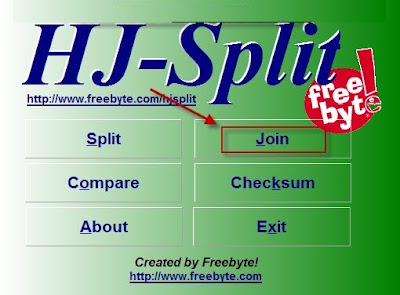
3. Double click on the icon of the program.
4. Click Join

Tutorial juntar arquivo com HJ-Split


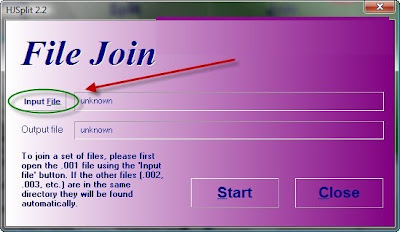
5.Click in Input File

Tutorial juntar arquivo com HJ-Split


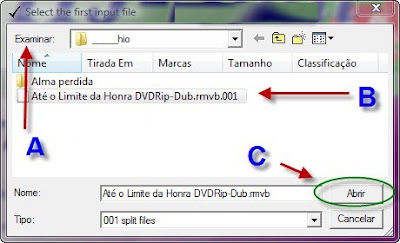
6. Follow the ABC
Look for the folder where the files are
Select the file to end .001 (the rest will not appear)
Click in Open.


Tutorial juntar arquivo com HJ-Split


7. Click in Start


Tutorial como juntar arquivo no HJ-Split


8.Wait for the bar reaches the end and ready to use the file may exclude parts.


Video: How to use HJsplit

Terms of Use

Any file protected by some kind of law should remain for a maximum, 24 hours on your computer.
They can be downloaded only to test, the user must purchase it and delete it after 24 hours.All material on this blog are only links that were already available in the Internet, does not host any files that the distribution illegal,so the webmaster of the blog does not have any responsibility over the content of links to downloads.
By using the links on this site, you acknowledge full responsibility for the legal consequences of their actions.
If you do not agree with the above conditions press Alt + F4 to exit